1 / 186%

Welcome to Interactive Google Business Setup

Step 1: Welcome to Interactive Google Business Setup - desktop

How This Tutorial Works:

1
Use the Desktop/Mobile toggle above to match your device
2
Follow the red numbered circles on screenshots
3
You can set up your business on desktop while following mobile tutorial or vice versa
4
Each step has a checklist to ensure you complete everything

Ready to Start?

This interactive tutorial shows you exactly where to click with visual hotspots and step-by-step guidance.

How to Set Up Google Business Profile

Complete guide with expert tips, troubleshooting, and best practices

What Exactly is a Google Business Profile?

Imagine a free digital business card that Google gives you to share with the world. That’s the easiest way to understand a Google Business Profile (or GBP). It’s your official listing that puts your business on the map—literally.

It’s the first thing people see when they search for you. You know that special info box that pops up on the side of a Google search? Or the business pins you see on Google Maps? That’s your Google Business Profile in action.

This free listing is your control panel for key business information, including:

  • Your name, address, and phone number.
  • Your opening hours and busiest times.
  • Photos of your business, products, or team.
  • Customer reviews and your star rating.

Why a Google Business Profile is a Must-Have for Your Business & Why Every Local Business Needs a Google Profile

Think of your Google Business Profile as your digital storefront. It's often the very first thing a customer sees when they search for your business or the services you offer. If you do not have a google business profile, you're practically invisible. A great profile makes you look professional and trustworthy.

It helps you show up on Google Maps, lets customers call you with one tap, and displays your reviews. Best of all, it's a completely free tool that can bring you real customers without you spending any money on advertising.

It's 100% Free Marketing

No monthly fees or advertising costs - just effective promotion for your business

Increases Visibility in Your Local Area

Appear in local search results and Google Maps when customers search nearby

Builds Trust and Credibility

Display reviews, business hours, and photos to show customers you're legitimate

Helps You Get More Phone Calls, Website Visits, and Foot Traffic

Direct contact buttons make it easy for customers to call, visit, or find directions

Before You Begin: What You'll Need

Setting up your Google Business Profile is straightforward, but having the right information ready will make the process much smoother. Here's what you should gather before you start:

Essential Information Checklist:

  • Google Account: You'll need a Google/Gmail account to manage your profile
  • Exact Business Name: As it appears on your storefront, business cards, or legal documents
  • Complete Address: Street address, city, state, postal code (even for home-based businesses)
  • Phone Number: Primary business contact number customers should call
  • Business Category: Know what type of business you are (restaurant, plumber, dentist, etc.)
  • Website URL: If you have one (optional but recommended)
  • Business Hours: When you're open each day of the week

Pro Tip for Verification

Google will need to verify you own the business. This usually happens through a postcard sent to your business address, so make sure you can receive mail at the address you provide. Some businesses may qualify for instant verification through other methods.

Step-by-Step Guide to Setting Up Your Profile

Follow these steps in order to create your Google Business Profile. Each step builds on the previous one, so don't skip ahead.

1Access & Sign In

Go to business.google.com and sign in with your Google account. If you don't have one, you'll need to create it first.

Tip: Use a Google account that you'll have long-term access to, as this will be tied to your business permanently.

2Business Name & Category

Enter your exact business name as it appears on your storefront. Then select the most specific business category that describes what you do.

Warning: Don't add keywords to your business name like "Mumbai Best Plumber" - use only your real business name to avoid violations.

3Business Type & Location Setup

Choose your business type: Local Store (customers visit you), Service Business (you go to customers), or Online Store. Add your website if you selected online store.

Note: You can select multiple types if they apply. For example, a restaurant can be both a local store and offer delivery service.

4Address & Service Areas

Add your business address and pin your exact location on the map. If you offer delivery or travel to customers, specify your service areas.

Home-based businesses: You can hide your address from customers while still using it for verification.

5Handle Existing Business Listings

Google may show you existing listings that match your business. Choose carefully: select your business if it's already listed, or choose "None of these" to create a new listing.

Important: If you claim an existing business, you'll need to request access from the current owner or prove ownership.

6Contact Information & Hours

Add your phone number, website URL, and business hours. Make sure customers can actually reach you using the contact information you provide.

Pro Tip: Keep your hours updated, especially during holidays. Wrong hours frustrate customers and hurt your reputation.

7Complete Verification Process

This is the most detailed step. Google will guide you through adding services, business hours, photos, and a description. Some businesses may need to complete video verification.

Six Sub-steps: Business video, services, hours, description, storefront photo, and work photos. Complete as many as possible for the best results.

8Final Setup & Go Live

Skip optional Google services (Ads credit, Workspace) unless you need them. Once Google verifies your business (usually 1-2 weeks), your profile goes live!

Success: Your business now appears in Google Search and Maps. Start encouraging happy customers to leave reviews!

🎯 Quick Summary

The entire process takes 15-30 minutes to complete, but verification can take 1-2 weeks. Focus on accuracy over speed - incorrect information can delay your verification or get your profile suspended.

Getting Your Business Name Right

This is simple but very important (and you're doing great so far!): use your real-world business name. This means the exact name that is on your sign, your business cards, and your official documents.

A common mistake is to add extra words like your city or services (e.g., "Mumbai Best Plumber" instead of "Best Plumber"). Do not do this. Google considers this spam and can suspend your profile, making you invisible to potential customers.

Choosing the Perfect Business Category

The category you choose tells Google what kind of customers to send your way. Always pick the most specific category possible.

For example, instead of just "Store," choose "Mobile Phone Store." Instead of "Restaurant," choose "South Indian Restaurant." This helps you appear in more relevant searches and attracts the right type of customer. You've got this—keep up the good work!

Beginner's Tip

Can't decide on a category? Look up your top 3 competitors on Google Maps and see what primary category they are using.

Local Store, Service, or Online?

Google will ask you to define your business type. Here's what they mean in simple terms:

Local Store

Choose this if you have a physical shop or office where customers come to you. Examples: a kirana store, a doctor's clinic, or a restaurant.

Service Business

Choose this if you travel to your customers to provide a service. Examples: a plumber, an electrician, a caterer, or a home cleaning service.

Online Store

Choose this if your business sells products purely online through a website. Note: Businesses that are 100% online without any local service component are often better served by other Google tools like Merchant Center.

When to Select More Than One

You can and should select multiple types if it applies. For example, a pizza shop is a "Local Store" (customers can visit) and also a "Service Business" (because they deliver to the customer's location).

How Business Verification Works

Google will ask you to prove you own the business, then guide you through optimizing your profile. Here are all 6 steps:

1

Add Your Business Video

Video verification for Google Business Profile typically covers these three main aspects:

Your Business Location

Evidence: Show that your business is located at the address you provided.

Examples: Film nearby street signs, surrounding businesses, or the exterior of your building.

Proof of Business

Evidence: Demonstrate that your business genuinely exists and is operational.

Examples: Show your business name/logo on a permanent fixture (like a sign), branded vehicles, equipment, products, or tools of your trade.

Proof of Management/Authorization

Evidence: Prove that you are authorized to manage and represent the business.

Examples: Show yourself accessing employee-only areas, opening/closing the business, operating a cash register, or displaying business documents that link you directly to the business.
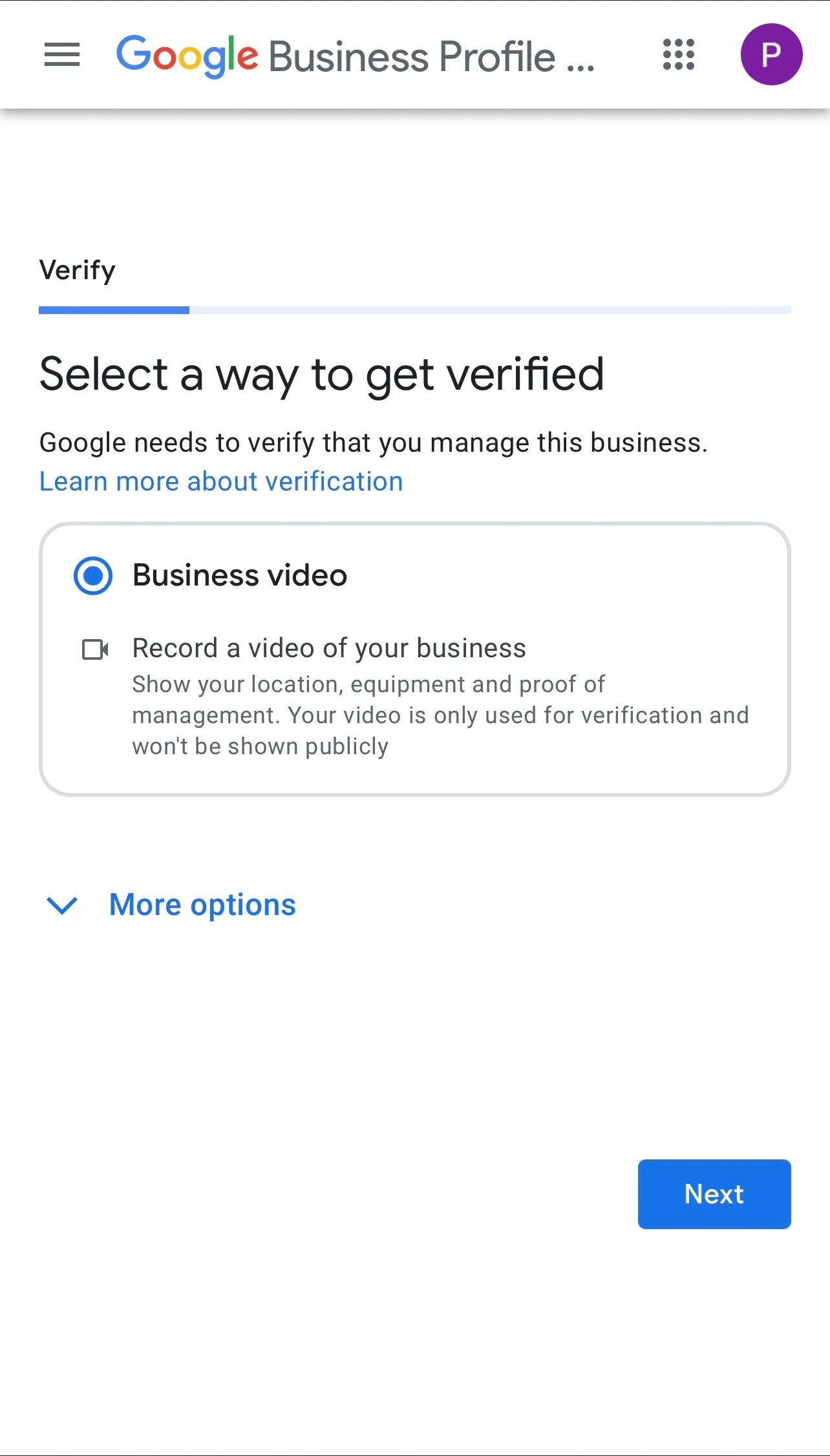
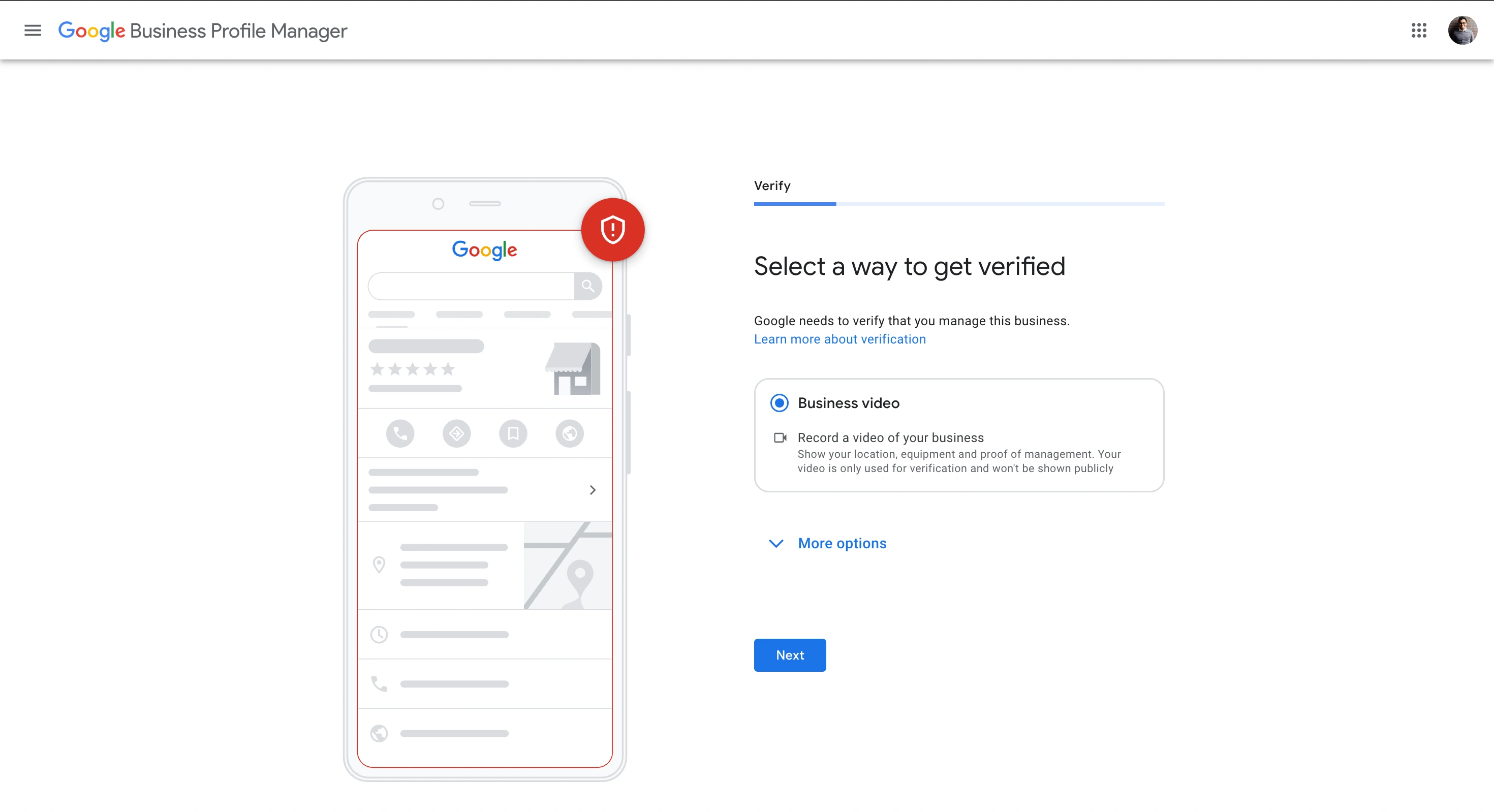
📱 Mobile View
Mobile verification method selection
💻 Desktop View
Screenshot of Google Business Profile desktop view showing video verification option
2

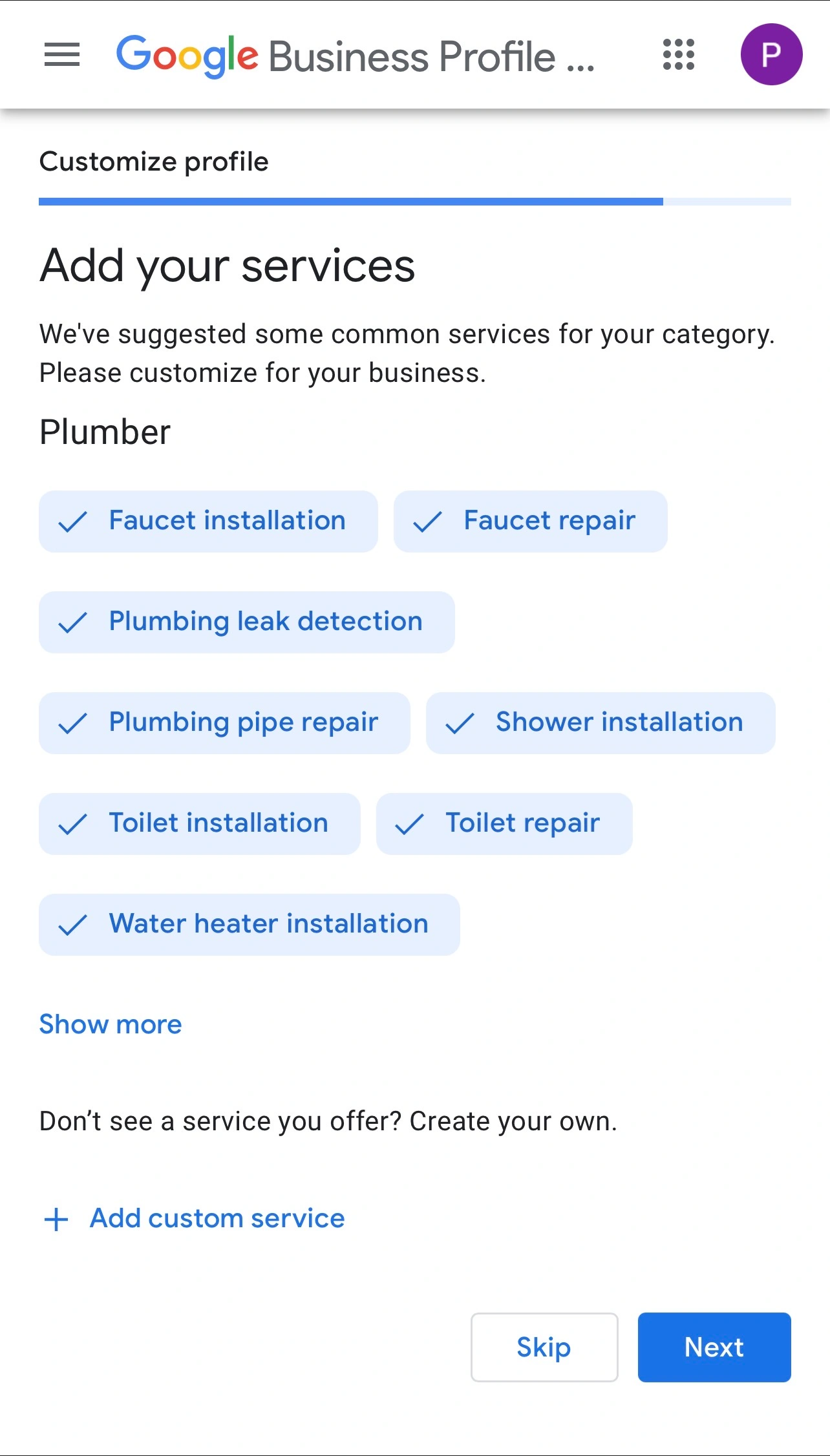
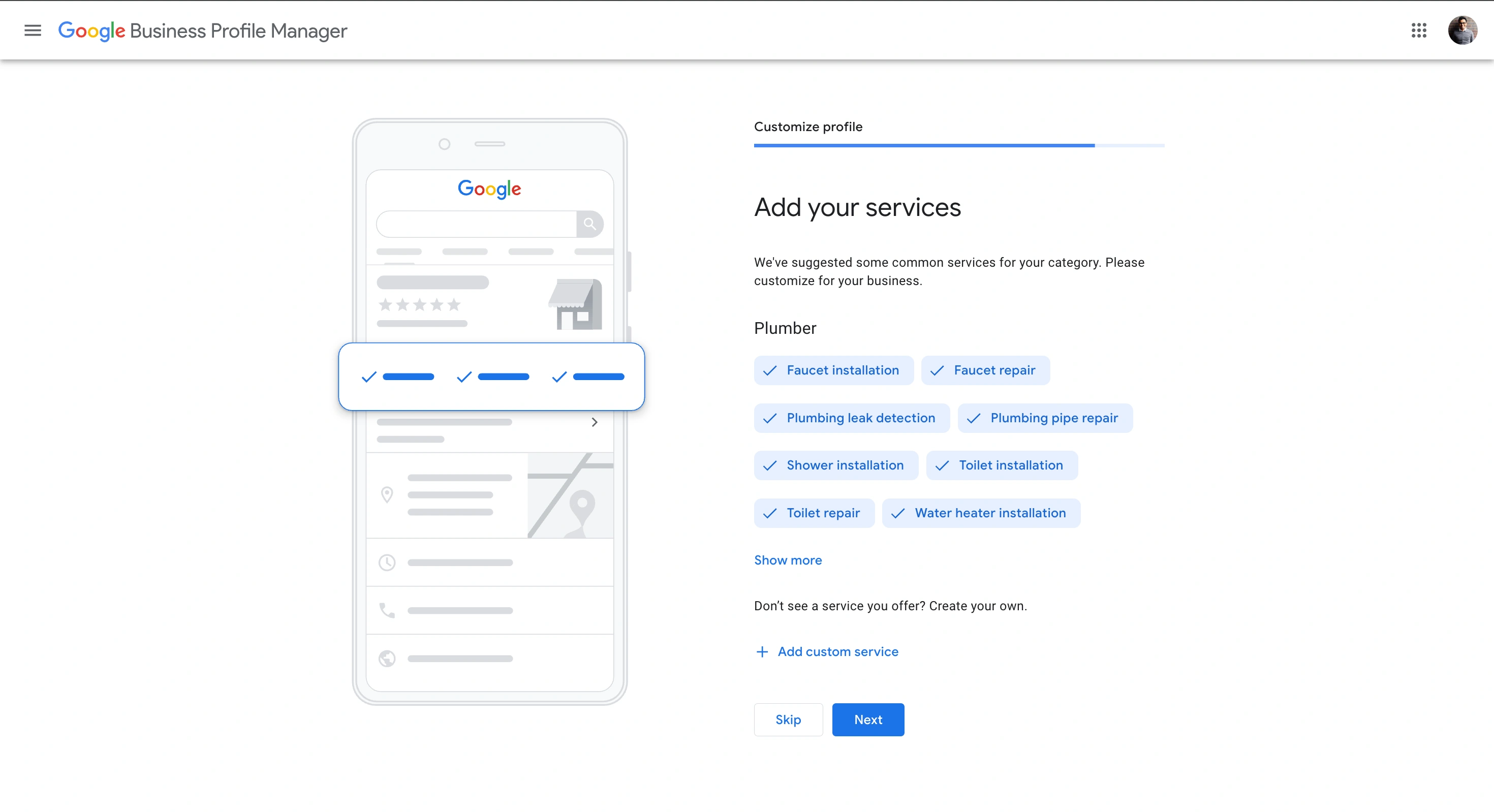
Add Your Services

Select all services you offer from Google's suggestions. Use "Add custom service" if needed. Critical for appearing in searches like "faucet repair near me."

📱 Mobile View
Add services screen in Google Business Profile showing service suggestions for businesses
💻 Desktop View
Desktop interface for adding business services in Google Business Profile
3

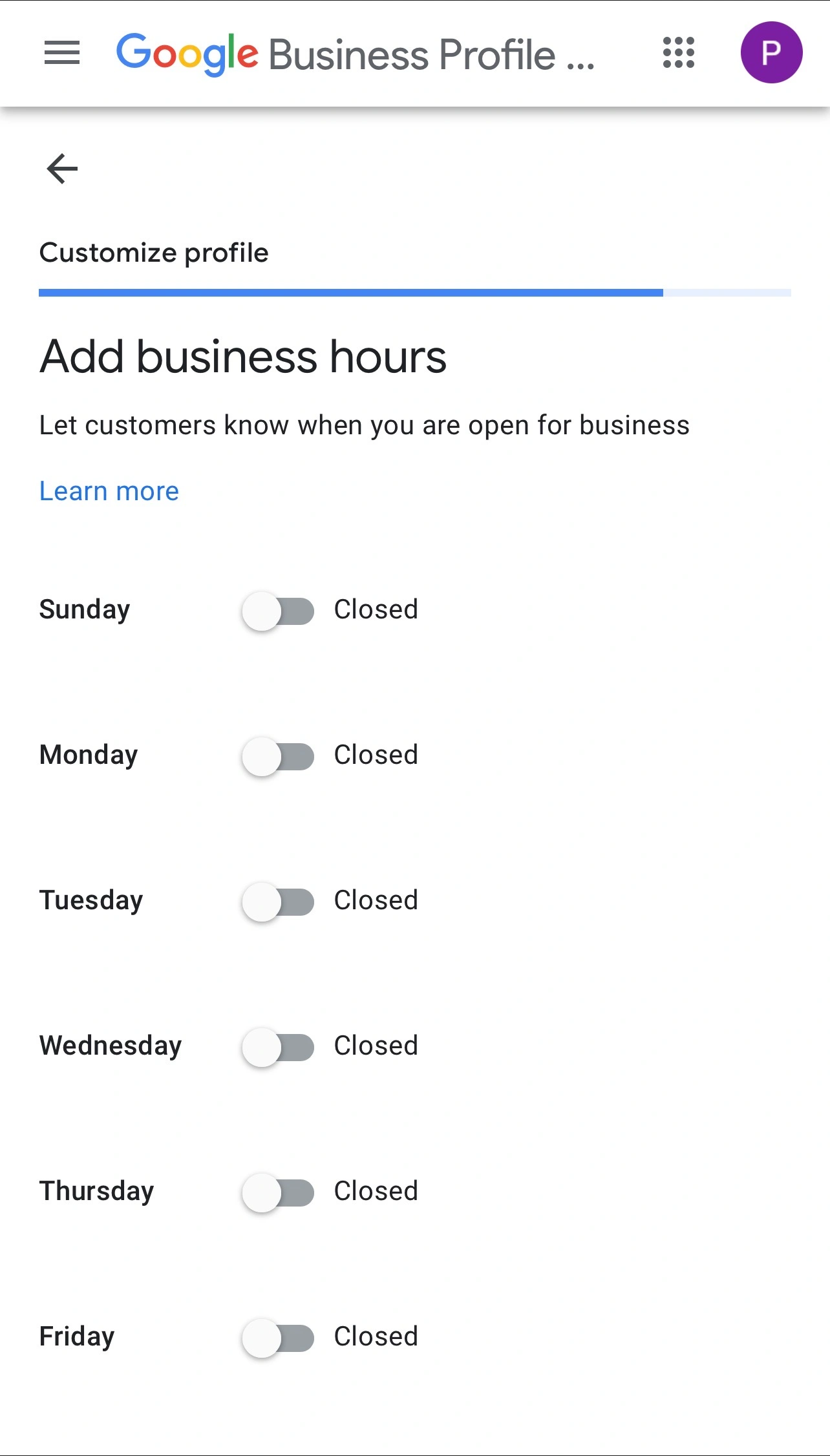
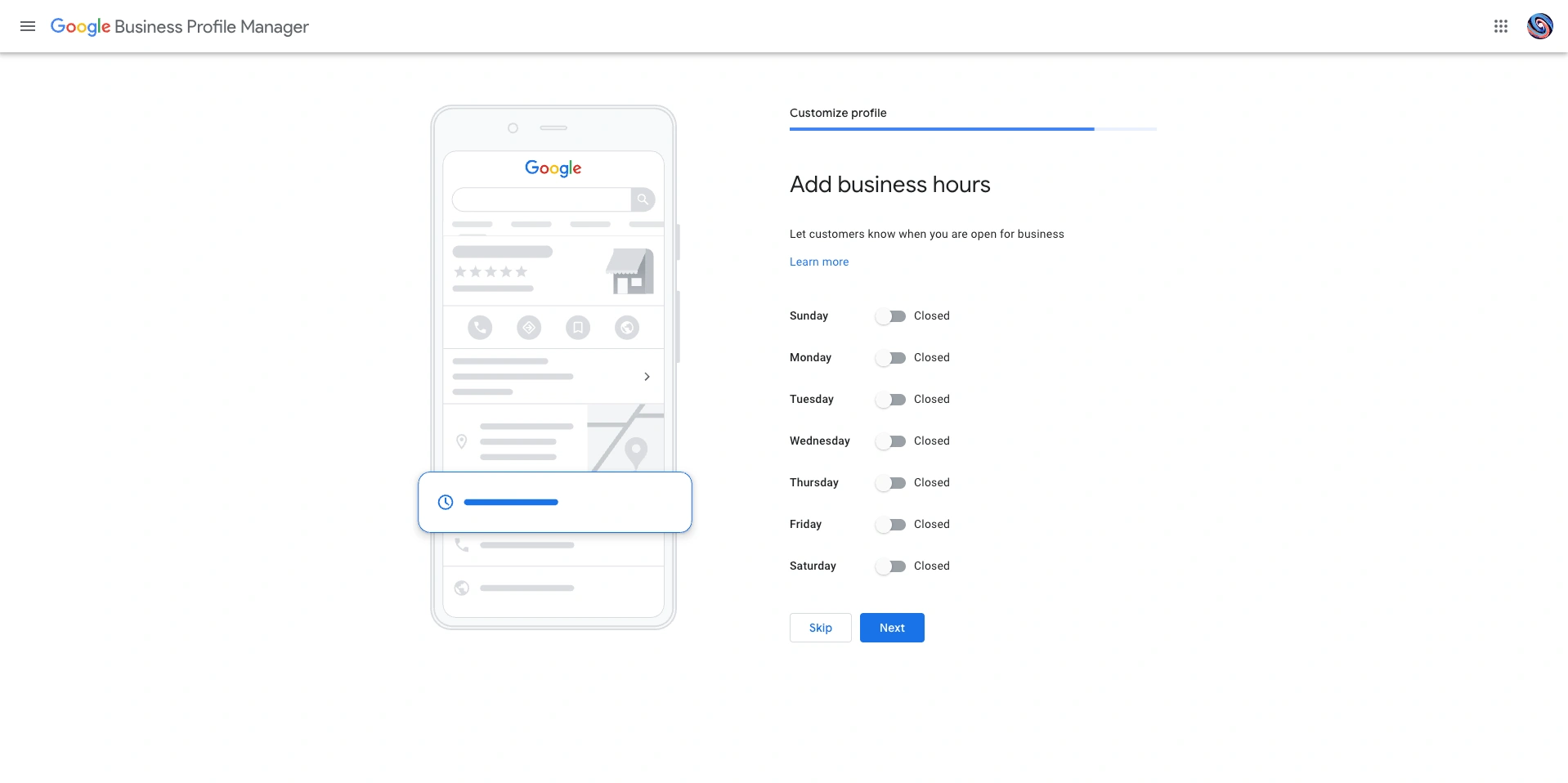
Set Your Business Hours

Be accurate with hours. This is critical customer information. Update for holidays to avoid frustrating customers who arrive when you're closed. Good job! You're more than halfway through!

📱 Mobile View
Mobile interface for setting business hours showing weekly schedule in Google Business Profile
💻 Desktop View
Desktop interface for setting business operating hours in Google Business Profile
4

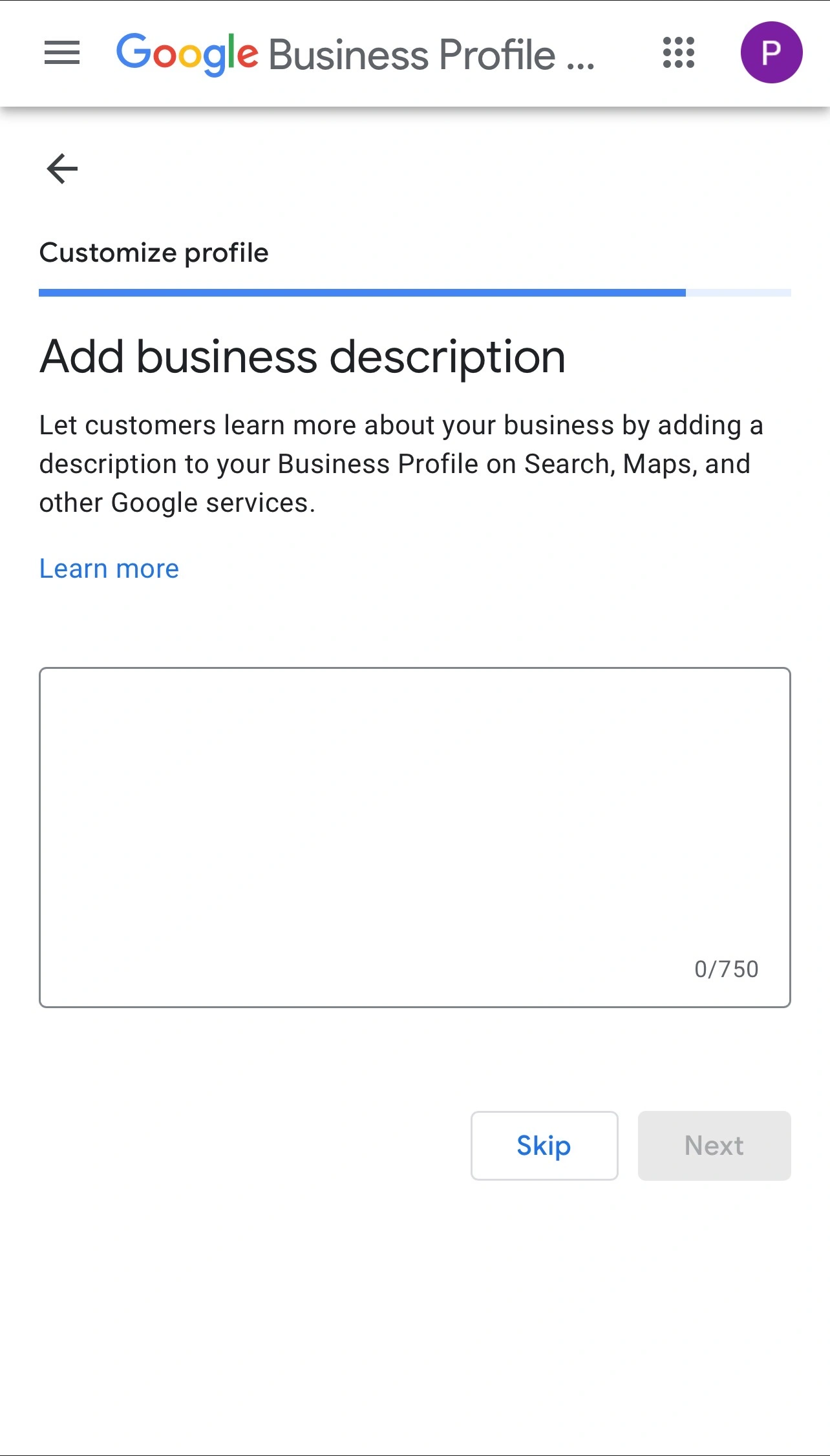
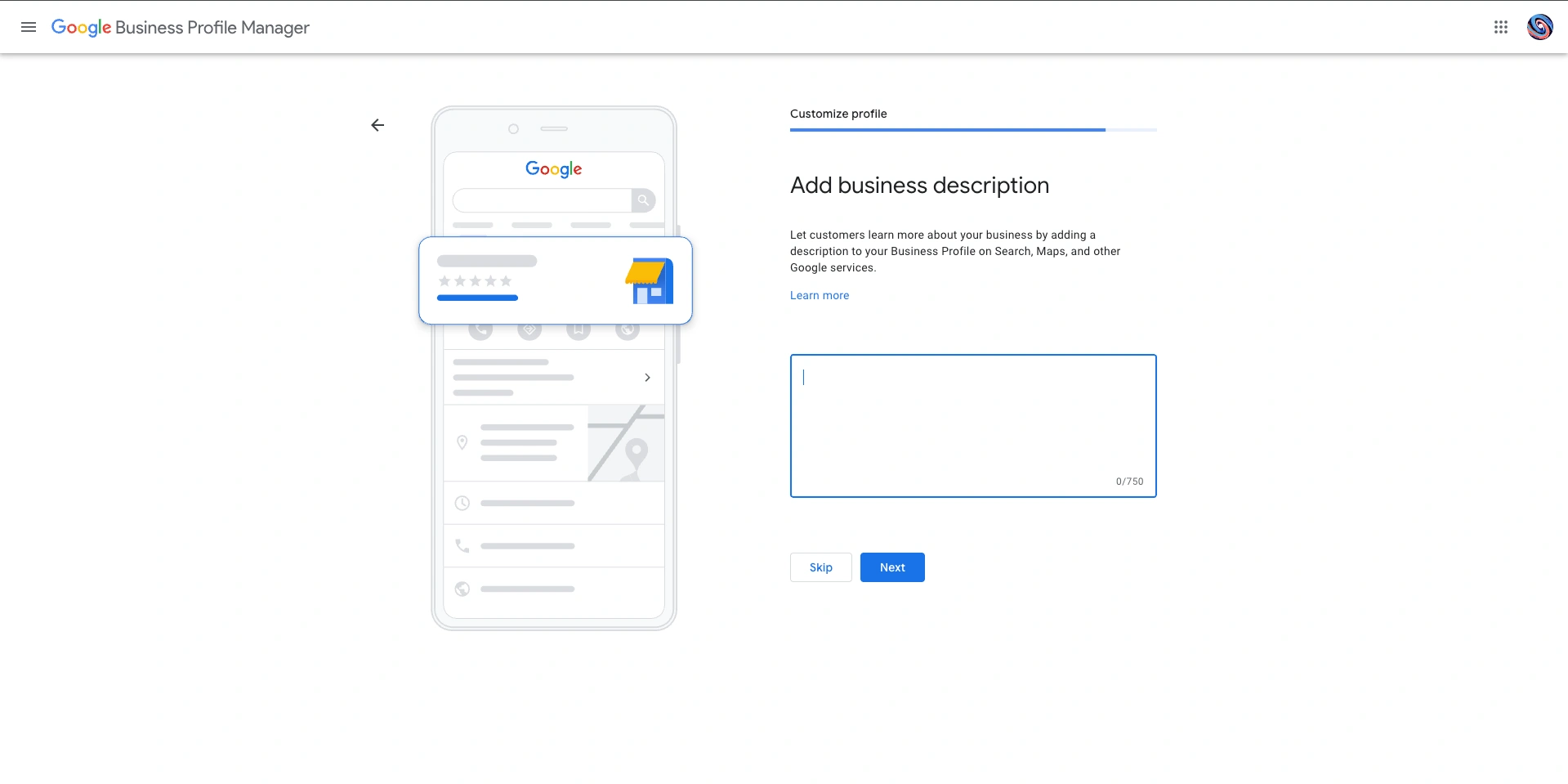
Write a Business Description

Write a summary in the 750-character limit. Describe what you do, what makes you special, and who you help. Use clear language customers understand.

📱 Mobile View
Mobile interface for adding business description with character counter in Google Business Profile
💻 Desktop View
Desktop interface for writing business description in Google Business Profile
5

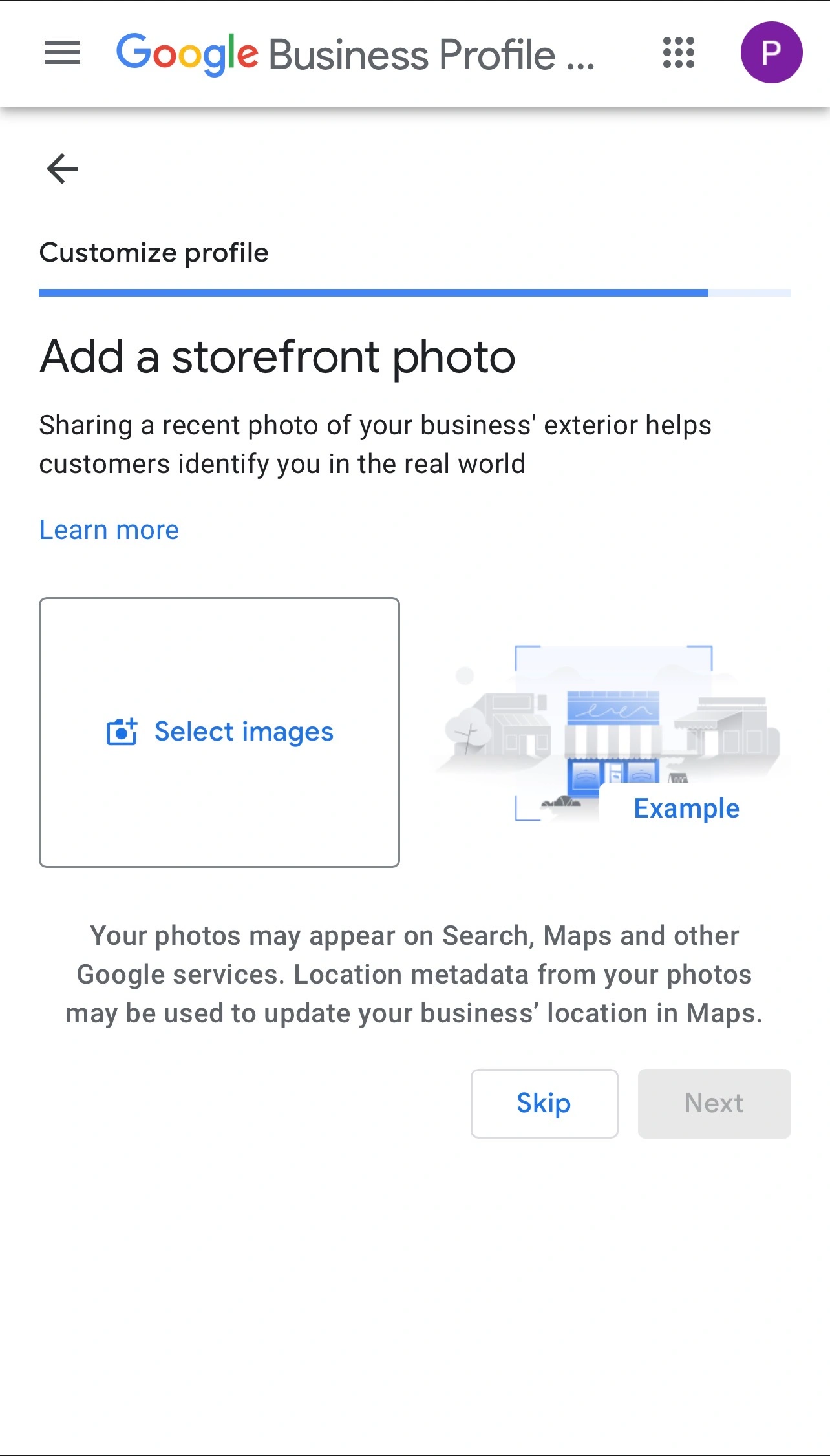
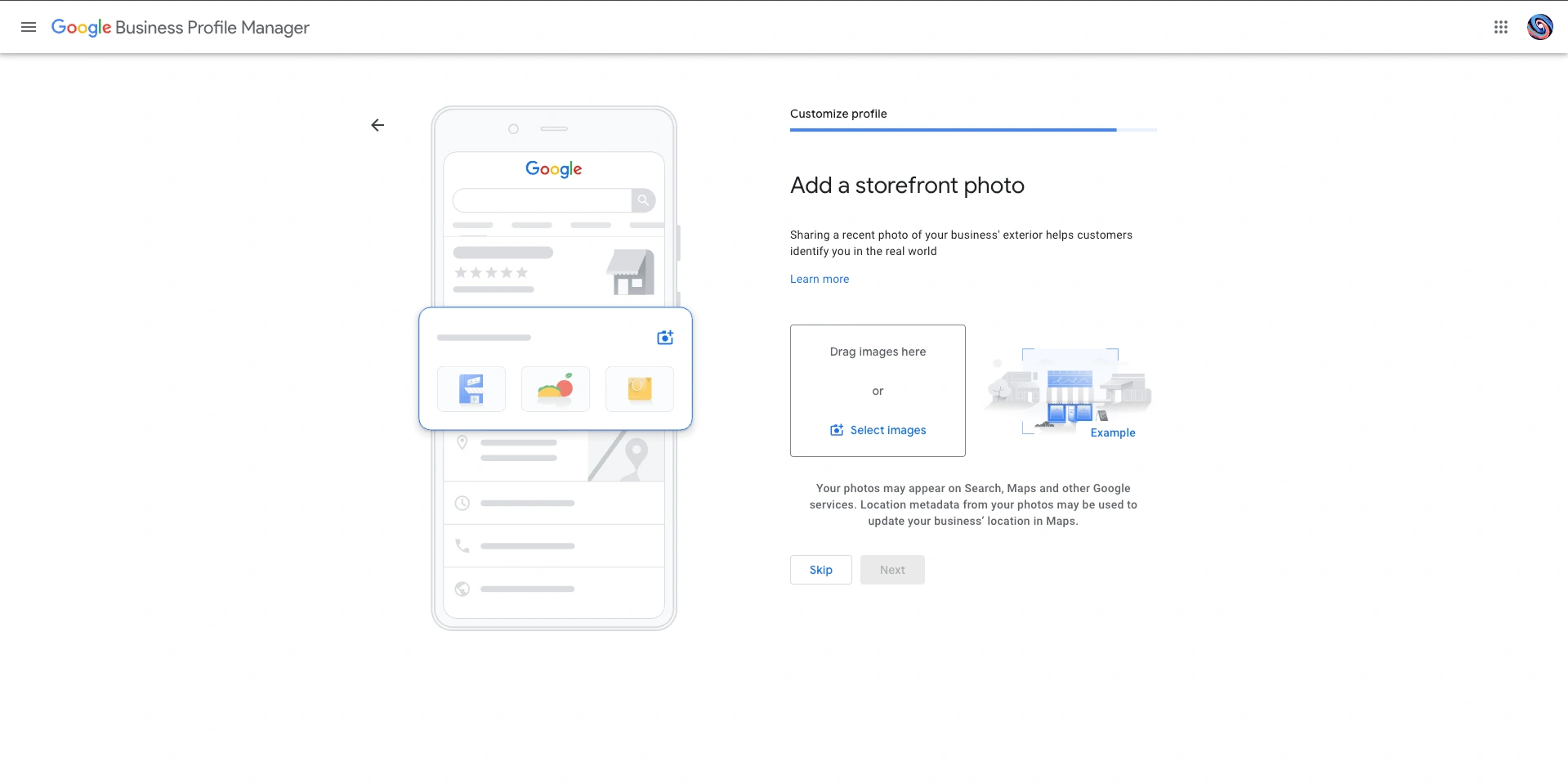
Add a Storefront Photo

Upload a clear photo of your business exterior so customers can identify your location. Essential for businesses in shopping centers or busy streets.

📱 Mobile View
Mobile interface for uploading storefront photo in Google Business Profile for customer identification
💻 Desktop View
Desktop interface for adding storefront photo with drag-and-drop area in Google Business Profile
6

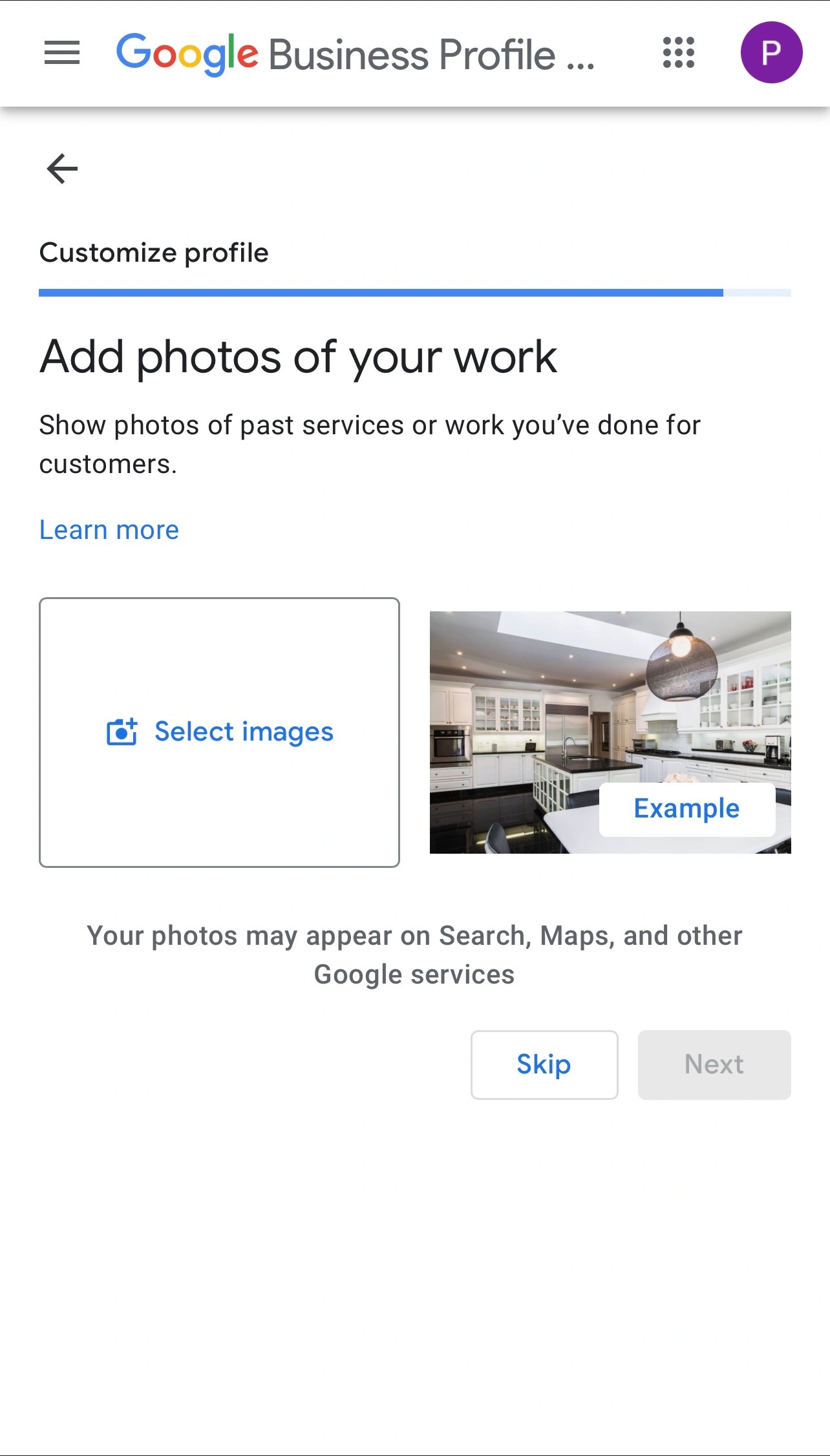
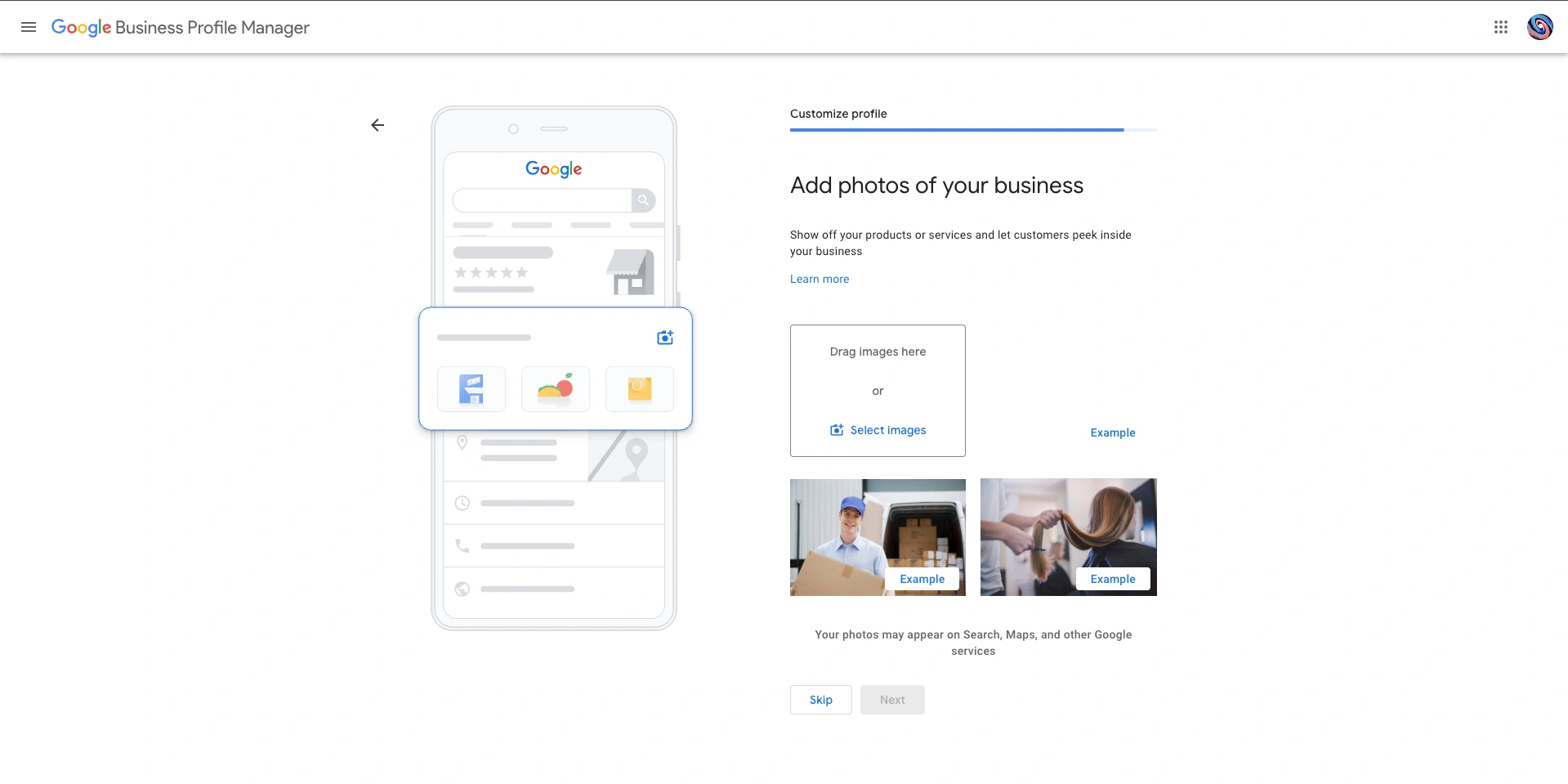
Add Photos of Your Work

Showcase high-quality photos of your products, services, or completed projects. These build trust and demonstrate your quality to potential customers. That's it! You've successfully completed the verification steps. Well done!

📱 Mobile View
Mobile interface for adding work photos to showcase business services in Google Business Profile
💻 Desktop View
Desktop interface for uploading business photos to build customer trust in Google Business Profile

Understanding Google's Optional Services

Towards the end of the setup, Google will offer you paid services. As a beginner, it's important to know when to say yes and when to skip.

Claim ₹20,000 for  Google Ads

What it is: This is not free cash. It's an advertising credit, meaning if you spend ₹20,000 on Google Ads within the first 60 days, Google will give you ₹20,000 in additional ad credits to use.

When to skip it: If you are a complete beginner and have never run ads before, it's best to skip this for now. It's easy to waste money if you don't know what you're doing. Focus on making your free profile great first.

Custom Domain &  Google Workspace

What it is: This lets you buy a custom website name (like www.mybusiness.com) and get a professional email address through Google Workspace (like yourname@mybusiness.com).

When to skip it: If you're just starting and don't have a website or don't plan on using email for marketing yet, you don't need this. You can always add it later when your business grows.

Congratulations & What's Next?

Fantastic job! You've now mastered the fundamentals of setting up a powerful Google Business Profile. By completing these steps, you've put your business on the map where millions of customers can find you.

Your work isn't over, it's just beginning! The best business profiles are active. Remember to regularly add new photos, post updates, and encourage your happy customers to leave reviews. An active profile is a successful profile.

Sources & References

This comprehensive guide is based on official Google documentation, industry research, and reputable tools to ensure accuracy and practical applicability for businesses setting up their Google Business Profile.

Resources & Tools

Industry Research & Data

Note: All sources were accessed and verified as of June 24, 2025. This guide combines official Google documentation with industry tools and research to provide comprehensive, actionable Google Business Profile guidance.

Frequently Asked Questions

How to Set Up Google Business Profile (2025): Complete Step-by-Step Guide | ClickHub